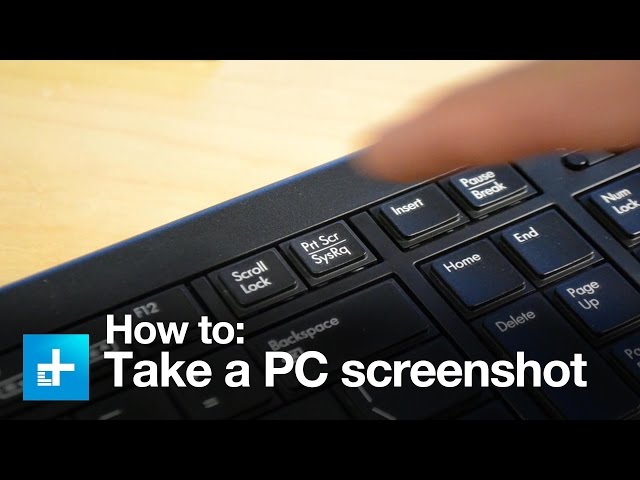
Taking a screenshot on Windows is easy once you know the right shortcuts. Whether you want to capture the full screen, a specific app window, or just a selected area, Windows provides multiple built-in tools to help you capture anything quickly and efficiently.
This guide covers all methods, including Print Screen, Snipping Tool, Snip & Sketch, Windows shortcuts, and Xbox Game Bar.
1. Capture the Entire Screen (Print Screen Key)
This is the simplest way to take a screenshot.
How to do it:
- Press PrtScn (Print Screen) on your keyboard.
- The screenshot is copied to the clipboard.
- Open Paint, Word, or any editor.
- Press Ctrl + V to paste.
- Save the image.
Best Use:
Full-screen capture for documentation or troubleshooting.
2. Capture the Active Window (Alt + PrtScn)
Perfect when you only want the currently open window.
Steps:
- Click the window you want to capture.
- Press Alt + PrtScn.
- Paste the screenshot using Ctrl + V.
- Save the image.
3. Snip & Sketch / Snipping Tool (Windows 10 & 11)
This tool lets you capture custom areas and annotate screenshots easily.
Steps:
- Search for Snip & Sketch or Snipping Tool in Start Menu.
- Click New.
- Choose snip type:
- Rectangular
- Freeform
- Window
- Fullscreen
- Capture your area.
- Edit or draw if needed.
- Click Save As.
4. Use Windows + Shift + S Shortcut (Quick Snip)
Best for fast screen clipping.
How to do it:
- Press Windows + Shift + S.
- A small toolbar appears.
- Select your snip type and capture.
- Screenshot is copied to the clipboard.
5. Xbox Game Bar (For Games & Apps)
Works well for capturing game screens or app windows.
Steps:
- Press Windows + G to open Game Bar.
- Click the camera icon, or press Windows + Alt + PrtScn.
- Screenshots save automatically in the Captures folder.
Bonus: Auto-Save Screenshots (Windows + PrtScn)
For automatic saving without copying to clipboard.
How to do it:
- Press Windows + PrtScn.
- Screen briefly dims.
- Screenshot saves to:
Pictures → Screenshots
FAQs: How to Screenshot on Windows
1. How do I take a screenshot on Windows?
Press PrtScn to capture the entire screen or Windows + Shift + S to select a custom area. The screenshot is copied to your clipboard.
2. Where are screenshots saved on Windows?
If you use Windows + PrtScn, screenshots save in:
Pictures → Screenshots
Snipping Tool lets you choose a custom save location.
3. Why is my Print Screen button not working?
Common reasons include:
- Your keyboard requires Fn + PrtScn
- Another app (like OneDrive or Game Bar) is overriding shortcuts
- Keyboard drivers need update
Try using Windows + Shift + S as an alternative.
4. How do I screenshot on Windows 11?
Windows 11 supports all standard methods:
- Windows + Shift + S (most popular)
- Snipping Tool
- PrtScn
- Windows + PrtScn
5. How do I capture only part of the screen?
Use Windows + Shift + S or open Snipping Tool → click New → select area → save.
6. How do I take a screenshot and automatically save it?
Press Windows + PrtScn.
Windows will auto-save your screenshot in the Screenshots folder.
7. How do I take a screenshot on a laptop without a Print Screen button?
Use any of these:
- Windows + Shift + S
- Snipping Tool
- Windows + G (Game Bar)
8. Can I take scrolling screenshots on Windows?
Windows doesn’t support scrolling screenshots natively.
Use third-party tools like:
- ShareX
- PicPick
- Snagit



Leave a Reply